Feedback and Questions
A quick Loom video is usually the best way to show me what's going on, or just leave me a message.
If you want to leave me an audio note, just drop me a WhatsApp.
I'll get back to you via email or WhatsApp.
Skills Library
Skills are pre-built instructions that tell Claude how to handle a specific type of task — in your voice, for your audience, using your context files.
- What Are Skills? — what they are and why they matter
- How to Call a Skill — the three ways to run one
- How Skills Improve — the feedback loop that makes them better over time
- Creating Skills — turning your own frameworks into repeatable workflows
- Improve or Change Skills — editing what's already there to work the way you want
There's one habit that makes the difference between a system that compounds and one that stays flat: running the wrap-up at the end of every session.
This module is short on purpose. One lesson, one habit.
- End Every Session — what the wrap-up does and why it matters
Skills are pre-built instructions that tell Claude exactly how to handle a specific type of task — in your voice, with your context, for your audience.
Without skills, Claude is a capable general assistant. With skills, it becomes your system. It knows to read your voice profile before writing anything, to check your audience language before any promotional copy, to follow your specific frameworks for the types of work you do again and again.
Your install comes with 50+ skills covering everything from writing social posts and emails to SEO, strategy, research, and website builds. You can use them as they are, refine them over time, and build your own for any workflow that's specific to how you run your business.
The full list is in the Skills Cheatsheet — keep it open in a separate tab when you're starting out. The lessons in this module cover the four things worth knowing about how skills work:
- How to Call a Skill — the three ways to run one
- How Skills Improve — the feedback loop that makes them smarter over time
- Creating Skills — turning your own frameworks into repeatable workflows
- Improve or Change Skills — editing what's already there to work the way you want

There are three ways to call a skill.
/content-router: takes an idea and writes it in whatever format you choose/seo-blog-writer: writes a fully optimised blog post/wrap-up: closes the session and saves what needs savingrun [skill name]For example:
run story-researcher or run email-sequence-writer. Claude will load the skill, ask any questions it needs, and then do the work.The slash commands and run syntax are shortcuts for when you already know what you want.
The cheatsheet lists all 51 of your skills with a one-line description of what each one does. Keep it open in a separate window when you're starting out, as it's the fastest way to find the right skill for any task.
Setup — run once when getting started
| Skill | What it does | Say something like… |
|---|---|---|
setup-user-profile | Asks you questions and writes your USER.md — who you are, your brand, your working style | "Run setup-user-profile" |
setup-north-star | Writes your CEO north star and revenue tracker | "Run setup-north-star" |
setup-brand-voice | Reads your writing samples and generates your voice profile | "Run setup-brand-voice" |
setup-icp | Interviews you and writes your ideal client profile | "Run setup-icp" |
setup-brand-stories | Compiles your brand stories and testimonials into a story bank | "Run setup-brand-stories" |
setup-language-rules | Creates your language rules — words and phrases Claude must never use | "Run setup-language-rules" |
Brand & strategy
| Skill | What it does | Say something like… |
|---|---|---|
mkt-positioning | Map your competitors and find your positioning angle | "What makes me different from competitors?" |
ceo-check | Check any task or decision against your north star | "CEO check on this idea" |
Content workflow — start here day-to-day
| Skill | What it does | Say something like… |
|---|---|---|
content-idea-extractor | Read a transcript, doc, or video → extract 10–15 content ideas | "Extract content ideas from this" |
content-router | Pick an idea → choose a format → routes to the right skill | "Route this idea to a blog post" |
content-suite | One idea → 2 FB/LI posts + 4 Threads threads + email, all at once | "Write a content suite for this idea" |
Writing skills
| Skill | What it does | Say something like… |
|---|---|---|
social-post-writer | Facebook or LinkedIn posts using 22 proven copy frameworks | "Write a Facebook post about X" |
email-sequence-writer | Complete nurture, welcome, or sales email sequences (5 types) | "Write a welcome sequence for my freebie" |
sales-page-writer | Full sales pages for 8 offer types | "Write a sales page for my course" |
authority-piece | Blog post + LinkedIn article + Facebook post from one topic | "Write an authority piece on X" |
instagram-captions | Single image or carousel captions in your brand voice | "Write Instagram captions for this" |
instagram-carousel-creator | Carousel slide copy + Canva design | "Create an Instagram carousel about X" |
threads-writer | 5–7 post Threads thread | "Write a Threads thread on X" |
value-bomb | One-sentence post that generates comments → DM conversations | "Write a value bomb post" |
reels-creator | Reels concepts with hooks, text overlays, and B-roll notes from a transcript | "Turn this transcript into Reels ideas" |
repurpose-video | YouTube video → week of social content | "Repurpose this YouTube video" |
video-transcript-repurpose | Video transcript → blog + social posts + email | "Repurpose this transcript" |
youtube-description-creator | Keyword-optimised YouTube description with title, bullets, and CTAs | "Write a YouTube description for this video" |
mkt-longform-article | Video transcript → magazine-style editorial article (2,000–5,000 words) | "Turn this into a long-form article" |
Email utilities
| Skill | What it does | Say something like… |
|---|---|---|
email-ideas-generator | Mid-scene email opening ideas — starts in the middle of a story | "Give me email opening ideas" |
email-subject-line-generator | 10 subject line options for an email you've written | "Write subject lines for this email" |
Copy utilities
| Skill | What it does | Say something like… |
|---|---|---|
headline-creator | Conversion-focused headlines for any format | "Write headlines for this sales page" |
fascinator-bullets | Curiosity-driven bullet points that tease without telling | "Write fascinator bullets for this offer" |
tool-humanizer | Remove AI writing patterns and restore natural voice | "Humanize this draft" |
tool-fact-checker | Verify claims and flag anything unverified | "Fact-check this article" |
SEO
| Skill | What it does | Say something like… |
|---|---|---|
seo-blog-writer | Write a fully optimised SEO blog post from a keyword | "Write an SEO blog post targeting X" |
seo-keyword-planner | Map a keyword list into a content cluster plan | "Plan content clusters from this list" |
seo-page-optimiser | Audit a specific page and output a prioritised fix list | "Audit my homepage for SEO" |
seo-service-page-writer | Write a conversion-focused SEO service page | "Write a service page for X" |
seo-page-rewriter | Audit and rewrite an existing page with SEO improvements | "Rewrite this page for SEO" |
seo-rank-tracker | Review rank movements and surface quick wins and drops | "Review my rank tracker" |
str-ai-seo | Optimise content to be cited by AI search engines | "Optimise this for AI search" |
Research & strategy
| Skill | What it does | Say something like… |
|---|---|---|
str-trending-research | What's trending in the last 30 days on Reddit, X, and the web | "What's trending in [topic] right now?" |
story-researcher | Research story angles across 4 types — surface 6–10 usable hooks | "Find story hooks for the topic of X" |
blog-weekly-review | Monday blog brief — rank movements, quick wins, next keyword candidates | "Run the Monday blog review" |
Session management
| Skill | What it does | Say something like… |
|---|---|---|
end-of-day | 5-minute close ritual — sets tomorrow's focus and updates your memory files | "Run end of day" |
wrap-up | End-of-session wrap-up — writes memory block and logs skill feedback | "Run wrap-up" |
Website & page building
| Skill | What it does | Say something like… |
|---|---|---|
service-page-writer | Write an SEO-optimised service page — keyword strategy, meta, headings, CTAs | "Write a service page for [offer]" |
sales-page-writer | Write a full conversion-focused sales page for any offer type | "Write a sales page for [offer]" |
sales-page-html-builder | Take finished page copy and build a branded HTML file ready to paste into WordPress | "Build an HTML page from this copy" |
viz-interface-design | Design a distinctive, on-brand page from scratch — layout, sections, visual hierarchy | "Design a page for [offer]" |
Publishing & utility
| Skill | What it does | Say something like… |
|---|---|---|
wp-publisher | Publish a finished blog post to WordPress as a draft | "Publish this post to WordPress" |
sales-page-html-builder | Convert finished sales page copy into a branded HTML landing page | "Build an HTML page from this copy" |
tool-youtube | Get transcripts, metadata, or thumbnails from any YouTube video | "Get the transcript from this video" |
tool-pdf-generator | Generate a clean PDF from markdown content | "Turn this into a PDF" |
00-slides | Research + structure + build a full HTML presentation from any topic | "Create a presentation about X" |
After every skill run, the system asks if you have any feedback. If you do ("make the emails shorter", "skip the bullet lists", "don't open with a question"), that gets saved to a file called learnings file inside the skill folder. The next time you run that skill, it reads those notes first and applies them before it starts.
You never have to repeat yourself. The system gets better the more you use it.
At the end of every session, running wrap-up also checks whether anything from your conversation is worth saving to your permanent memory files: preferences, decisions, context that matters next time. Two minutes at the end of each session, and nothing gets lost.

If you have any repeatable framework, process, or template you use again and again, you can turn it into a skill. Claude walks you through the whole thing.
How to do it
You don't need to copy your document into the Business Brain OS folder first. Just tell Claude what you want to build and point it to where the file lives — it can reference files from anywhere on your drive. Tell Claude what you want the skill to do, and it handles the rest: it looks at how existing skills are structured, builds the new skill, registers it in your system, and gives you a summary of how it works.
Once it's built, test it a couple of times. Anything that feels off — give Claude the feedback, and it'll update the skill. The more you refine it, the better it gets.
The principle
The install comes with a full skill library, but the most powerful skills are often the ones you build yourself — based on the frameworks and formats that work for your specific business. If you keep doing something the same way every time, that's a skill waiting to be built.

The skills that come with your install are a starting point. They're not a fixed system you have to follow — you can edit any of them, give them feedback, or build new ones from scratch. The idea is that over time, this becomes your system, not ours.
Understanding how a skill works
Every skill has a section at the top called Front Matter — a summary of what the skill does and how it runs. If you're not happy with how a skill is behaving, ask Claude to explain it first: "How does this skill work? Walk me through the workflow." Once you understand the logic, it's much easier to know what to change.
Making changes
Give Claude your feedback on how you want it to work differently — longer, shorter, different format, skip a step, add a step. Claude updates the skill's learnings file with your changes. The next time you run it, those changes are already baked in.
You don't need to go into the files yourself. Do it through the chat.
The one thing to do before you close Claude every time.
Run this every time before you close Claude. It takes about two minutes and it's what makes the system compound over time.
Type at the end of every session:
/wrap-up
What it saves
The wrap-up skill writes three things:
memory/sessions/[date].md — today's session log. What you worked on, what decisions were made, what was produced.
memory/MEMORY.md — the persistent facts index. Key decisions, preferences, and context Claude should remember across all future sessions.
context/tomorrow.md — your open threads list. Anything left unfinished, any decisions still pending, any tasks carried forward.
What happens without it
Claude's built-in memory doesn't persist between sessions. Without wrap-up, the next session starts cold — no memory of what you decided, no open threads, no captured feedback. The system loses what it learned.
With wrap-up, every session builds on the last. This is the habit that makes the whole thing work.
The skills built specifically for how you work. Start with these.
Workflows
Two settings that turn every Zoom call into usable material for Claude.
1. Switch to local recording

Zoom defaults to saving recordings to the cloud, but cloud recordings don't include a VTT transcript file. To get the transcript, you need to switch to local recording and enable the caption option.
In Zoom: go to Settings → Recording. Under Other settings, tick Save closed caption as a VTT file. Then change the save location from cloud to local, and set the folder to your Dropbox so recordings are easy to find.
At the end of each recorded call, your Dropbox folder will contain both the video and a .vtt transcript file.
Please be aware these video files can be extremely large — once you have the transcript, you may want to delete the original video file to free up space.
2. Move the transcript to your Business Brain OS folder
Copy the .vtt file across to your Business Brain OS Dropbox folder. A good place for it is source-material/calls/ so your call transcripts stay in one place and are easy to find.
You can do this yourself by dragging the file across in Finder or File Explorer, or you can ask Claude to move it for you: "Move the VTT file from [location] into my source-material/calls folder."
Once it's there, drop it into Claude and say what you want to do with it: content, session notes, a summary, action items. It can work from that directly, without you needing to retype anything.
Map your competitors and find the angle that makes you the obvious choice.
Before you write a word of marketing copy, you need to know what you're positioning against. This skill researches the competitive landscape in your space and surfaces 3–5 positioning angles, with a recommended pick based on what the market is missing.
You end up with a clear, specific positioning statement that shapes every piece of content and copy you produce from that point on.
What it does
- Researches your direct and indirect competitors
- Maps what they claim, how they talk, and what gaps exist
- Generates 3–5 positioning angles with trade-offs for each
- Recommends one and explains why
To use it: Say "Run mkt-positioning for [your brand / offer name]" and describe who you serve and what you do.
A filter for your time — before you commit to a task, run it through your north star.
It's easy to stay busy without moving forward. The CEO Check takes any task, project, or decision and runs it through your north star and 90-day priorities. It tells you whether you're aligned, off-track, or uncertain — with reasoning and a suggested next step.
Use it when you're not sure whether something is worth doing, or when you want to sense-check a direction before investing time in it.
To use it: Say "CEO check on [task or decision]" or describe what you're thinking of doing.
Turn any transcript, document, or video into 10–15 ready-to-use content ideas.
This is the entry point to your content workflow. Paste in a transcript from a call, a Google Doc, a voice note, a webinar recording — anything with substance — and the skill extracts 10–15 content ideas from it. You approve the ones you want, and they go straight into your Airtable queue ready to write.
What it works from
- Coaching call or discovery call transcripts
- Your own voice notes or videos
- Client feedback documents
- Google Docs or articles you've written
- Webinar or podcast recordings
To use it: Say "Extract content ideas from this" and paste the content, or give Claude a file path or Google Doc link.
Pick an idea, choose a format — Claude routes to the right writing skill automatically.
The Content Router is your day-to-day starting point once you have ideas in your queue. You pick an idea (from Airtable or by typing it), choose the format you want — Facebook post, email, Instagram carousel, blog post — and the router sends it to the right skill without you needing to know which one to call.
It also handles repurposing: if you have a piece of content that's already written, you can feed it in and ask for a different format.
To use it: Say "Content router" or "Route this idea: [idea]" and Claude will ask which format you want.
One idea. A full week of content. All at once.
When you want maximum output from one idea, this is the skill. Give it a topic and it produces two Facebook/LinkedIn posts using different frameworks, four Threads threads (Credibility, Audience Call-In, Contrarian, and Results & Lesson), and a broadcast email — all in your brand voice. Everything saves to Airtable as drafts for your review.
Before it starts writing, it asks for your current offer and CTA so everything points in the same direction.
To use it: Say "Run content suite on [idea or topic]"
Facebook and LinkedIn posts using 22 proven copy frameworks.
This is the workhorse for individual social posts. It asks for your topic and any relevant context, then writes a post using whichever framework fits best — or asks you to choose. The 22 frameworks include Pain-Agitate-Solve, Success Story, Epiphany, Direct Offer, Contrarian Take, and more. Each one is designed for a different intent: building trust, driving action, attracting new followers, or warming an existing audience.
To use it: Say "Write a Facebook post about [topic]" or "Social post writer — [topic]"
A 5–7 post Threads (or Twitter/X) thread from any idea or existing content.
Threads work differently to long-form posts — each post needs to stand alone and pull the reader forward. This skill structures the thread with a strong hook, develops the idea across the middle posts, and closes with a call to action. It works from a topic you give it, or can repurpose something you've already written.
To use it: Say "Write a Threads thread about [topic]"
Single image or carousel captions written in your brand voice.
Instagram captions need a different rhythm to Facebook — shorter sentences, a stronger first line, and a CTA that feels natural rather than pushy. This skill writes captions for a single image post or to accompany a carousel, using your voice profile so they sound like you.
To use it: Say "Instagram caption for [topic or image description]"
Slide copy and a Canva design — from idea to shareable carousel.
This skill does two jobs: it writes the copy for each slide of an Instagram carousel, then opens Canva and builds the design using your brand colours and fonts. You get an edit link so you can adjust anything before publishing.
Works best for educational carousels, tip lists, before-and-after stories, or framework breakdowns.
To use it: Say "Create an Instagram carousel about [topic]"
A one-sentence post that generates comments and leads to DM conversations.
Based on Laurel Portier's framework, a value bomb is a short, bold claim that invites people to comment for more. The post itself is a single sentence — the value is delivered in the DMs. This skill writes the post, then gives you the follow-up DM framework so every comment becomes a conversation.
It's designed for building pipeline through organic social, not just reach.
To use it: Say "Write a value bomb about [topic or offer]"
One topic. A blog post, a LinkedIn article, and a Facebook post — all at once.
This skill asks you a set of questions first — your specific angle, your experience with this topic, what you want the reader to take away — and then writes all three pieces from your answers. The copy comes from what you said, not from AI expansion of a seed idea. Everything saves to Airtable and optionally to a Google Doc.
To use it: Say "Authority piece on [topic]" — it will ask you the intake questions before writing anything.
Turn a video transcript into Reels concepts with hooks, captions, and B-roll notes.
Give this skill a transcript from any video — a coaching session, a Facebook Live, a Zoom recording — and it produces a set of Reels concepts. Each concept includes a hook, the on-screen text overlay, the caption, and B-roll or visual direction notes. You pick the ones you want to film or cut.
To use it: Say "Create Reels from this transcript" and paste or link the transcript.
One YouTube video turned into a full week of social content.
Give Claude a YouTube URL and this skill fetches the transcript, then produces a YouTube description, two Facebook posts, a LinkedIn post, and a Threads thread — all angled differently so nothing feels like a copy-paste. Everything saves to Airtable as drafts.
To use it: Say "Repurpose this YouTube video: [URL]"
A transcript in — an SEO blog, social posts, email, and Canva design briefs out.
This is the most comprehensive repurposing skill. It takes a video transcript and produces a full content suite: an SEO-optimised blog post, Facebook posts, a LinkedIn post, a broadcast email, and three Canva design briefs. Use it when you have a longer piece of content you want to get full mileage from.
To use it: Say "Repurpose this transcript" and paste the transcript or give the file path.
A keyword-optimised YouTube description with title options, bullets, timestamps, and CTAs.
YouTube descriptions do two jobs: help the algorithm understand what the video is about, and convert viewers into subscribers or leads. This skill writes a full description with a keyword-rich opening paragraph, bullet points summarising the video, timestamp suggestions, and CTAs — plus 3–5 title options.
To use it: Say "YouTube description for [video topic]" and give a summary or transcript.
A video transcript turned into a standalone magazine-style editorial article.
Unlike a blog post that summarises a video, this skill writes an article that stands completely on its own — something a reader could find without ever seeing the video. The result is 2,000–5,000 words of editorial-quality content, structured like a feature piece, with your insights at the centre.
To use it: Say "Turn this transcript into a longform article" and paste the transcript.
This video shows you how to edit an existing email sequence that's inside your Business Brain.
Whether you want to change the tone, update the offer details, adjust the timing, or rewrite individual emails — you'll see how to call the email sequence up, how to edit it inside Claude, and generate subject lines.
The changes live inside our shared folder, so we can all work on the same files.
Complete email sequences — from freebie welcome to sales follow-up.
This skill writes full email sequences across five types: freebie to low-ticket, freebie to book-a-call, fill-your-webinar, webinar registration, and upsell from webinar. It asks intake questions first — your audience, your offer, the tone you want — then writes every email in the sequence in your voice.
To use it: Say "Write an email sequence for [offer or funnel type]"
Mid-scene email opening ideas — starts you in the middle of a story.
The blank page problem for emails is usually the opening. This skill generates mid-scene openings — you're dropped straight into a moment, a situation, a conversation — so you never have to write a first line from scratch. Give it a topic or an emotion and it returns a set of opening hooks to choose from.
To use it: Say "Email opening ideas for [topic]"
Ten subject line options for any email you've written.
Paste in your finished email and this skill generates 10 subject line options across different angles — curiosity, directness, story-led, benefit-led, and question-based. You pick the one that fits the tone of the email and your list.
To use it: Say "Give me subject line options for this email" and paste the email.
Full sales pages for 8 offer types — written from your answers, not AI assumptions.
This skill routes through a set of intake questions specific to your offer type, then writes a complete sales page: headline, sub-headline, problem section, solution, benefits, social proof, offer details, objection handling, and CTA. The eight offer types covered are 1:1 services, group programmes, courses, digital products, lead magnets, masterclasses, workshops, and memberships.
To use it: Say "Sales page for [offer name / type]" — it will ask the intake questions before writing.
Convert finished copy into a branded HTML landing page ready to paste into WordPress or GHL.
Once your sales page copy is approved, this skill builds the HTML — complete with your brand colours, typography, section layouts, and button styles. The output is a single HTML file ready to paste into a Divi code block or a GHL page builder.
To use it: Say "Build the HTML for this sales page" and paste the finished copy.
Conversion-focused headlines for any format — social, email, page, or blog.
Give it a topic, an offer, or a piece of content and it generates a set of headlines across different angles: benefit-led, curiosity-led, direct, and story-led. Use it when the opening line of anything isn't landing, or when you need to test a few options before committing.
To use it: Say "Headline options for [topic or content]"
Curiosity-driven bullet points that tease without giving the answer away.
Fascinator bullets (named after Gary Halbert's technique) create a specific kind of itch in the reader — they hint at a specific, valuable piece of information without delivering it. They're used on sales pages, in email P.S. lines, on lead magnets, and in social posts to make people want to find out more.
To use it: Say "Write fascinator bullets for [topic or offer]"
Remove AI writing patterns and restore natural, human voice before anything goes live.
AI-generated copy has tells — specific sentence structures, word choices, and rhythm patterns that readers (and algorithms) recognise as machine-written. This skill scans finished copy against a checklist of 50+ AI patterns and rewrites the ones it finds. It runs automatically as the final step in most writing skills, but you can also run it manually on any piece of content.
To use it: Say "Humanize this" and paste the content.
Restructure content so it gets picked up and cited by AI search engines.
When someone asks ChatGPT, Perplexity, or Claude a question, those tools pull from content that's structured in a specific way — answer-first headings, short paragraphs, clear bullet lists, and an expanded FAQ. This skill reformats any piece of content into that structure without changing what it says, so it has a better chance of being surfaced by AI search.
To use it: Say "Format this for AI search" and paste the content.
Verify the claims in any piece of content before it goes out.
This skill reads through a finished piece of content, identifies every specific claim (statistics, named studies, dates, attributions), and flags anything it can't verify. It returns a report with a confidence level for each claim and suggested replacements or corrections where needed.
To use it: Say "Fact check this" and paste the content.
A fully optimised blog post from a target keyword — structure, headings, meta, and on-page elements included.
Give it a keyword and any context (what angle you want to take, who it's for, any specific points to include), and it writes a complete, search-optimised blog post. The output includes a meta title, meta description, H1, H2 structure, internal link suggestions, and image alt text recommendations.
To use it: Say "Write an SEO blog post for [keyword]"
Map a keyword list into a pillar page and supporting blog content cluster.
Random blog posts don't rank as well as a coordinated content cluster. This skill takes your keyword research CSV and maps it into a clear structure: one pillar page (the main topic), and a set of supporting blog posts that feed into it. The result is a content plan that builds topical authority over time.
To use it: Say "Run SEO keyword planner" and have your keyword CSV ready.
Audit a specific page and get a prioritised list of SEO fixes.
Paste in a page's content (or give Claude the URL) along with the target keyword, and this skill runs it through an SEO checklist — title tag, headings, keyword usage, internal links, meta description, readability, and more. It returns a prioritised fix list: quick wins first, then bigger structural changes.
To use it: Say "SEO audit this page" and paste the content plus the target keyword.
A conversion-focused SEO service page for any offering.
Service pages need to do two things: rank for the right keywords, and convert the people who land on them. This skill combines both — it asks for your target keyword and service details, then writes a page that's structured for search and built to persuade. Includes headline, problem/solution framing, what's included, trust signals, and a clear CTA.
To use it: Say "Write an SEO service page for [service name and keyword]"
Audit an existing page and rewrite it with SEO improvements once you've confirmed the recommendations.
This is a two-step skill: first it audits the page and tells you what it's going to change and why. Once you approve, it rewrites the page with all the improvements applied. You stay in control of what changes and what stays.
To use it: Say "SEO rewrite this page" and paste the existing page content plus the target keyword.
Review a site audit CSV and prioritise the technical fixes that will move the needle most.
Technical SEO issues — broken links, slow pages, missing meta tags, crawl errors — quietly drag down your rankings. This skill reads a site audit export (from Ubersuggest or a similar tool) and tells you which issues to fix first, which to ignore, and roughly how much each one matters for your rankings.
To use it: Say "Run SEO technical audit" and have your audit CSV file ready.
Review your rank movements and surface quick wins, drops, and what to do next.
Give it your rank tracking data and it analyses the movements since your last check — keywords climbing into page one, drops to investigate, opportunities where a small improvement could mean significantly more traffic. It gives you a clear action list rather than a wall of data.
To use it: Say "Run SEO rank tracker" — it will look for your most recent tracking CSV.
Optimise content to be cited by AI search engines — not just found by Google.
Traditional SEO gets you on Google. GEO (Generative Engine Optimisation) gets you cited by ChatGPT, Perplexity, Claude, and other AI tools when someone asks a question in your space. This skill applies GEO strategies to your content — discovery, extraction, and citation optimisation — so you show up in AI-generated answers.
To use it: Say "Optimise this for AI search" and paste the content.
Research what's trending right now in your market — across Reddit, X, and the web.
Content that connects to what people are already thinking about performs better than evergreen content posted in a vacuum. This skill researches current conversations across Reddit, X, and the web in a topic area you specify, surfaces the patterns and angles that are getting traction right now, and returns them in a format ready to brief into a writing skill.
To use it: Say "Trending research on [topic]"
Deep research on any topic from the last 30 days — real discussions, real language.
This is a deeper research tool than the trending skill. You give it a specific topic and it returns: real conversations from Reddit and X, the exact language people are using, copy-paste-ready prompts based on what you found, and a summary of what's resonating and why. Use it before writing content on a topic you want to really nail.
To use it: Say "Last 30 days research on [topic]"
Research story angles across 4 types and surface 6–10 usable hooks.
Stories are the backbone of persuasive copy, but finding the right angle takes time. This skill researches story ideas across four angles — origin stories, client transformation stories, belief-shift stories, and failure-to-success stories — and returns 6–10 hooks with a brief description of each. You approve the ones you want and they save to your Airtable story bank.
To use it: Say "Story researcher on [topic or theme]"
A branded client proposal page generated from a discovery call transcript.
After a discovery call, paste in the transcript (or give the file path) and this skill produces a complete, styled HTML proposal page — personalised to the client with their name, their situation, your recommended scope, investment options, and next steps. It reads your existing proposals as reference so the tone and structure stays consistent.
The output saves to proposals/[client-slug]-proposal.html and is ready to send.
To use it: Say "Write a proposal for [client name]" and provide the discovery call transcript.
A 5-minute close ritual that sets tomorrow's focus and keeps your system up to date.
Run this at the end of every working day. It asks what you got done, sets two strategic focus tasks for tomorrow (drawn from your weekly priorities), updates your memory files and tomorrow.md with open threads, and writes the data file for the next morning's nudge email. Takes about five minutes and means you never start a day from scratch.
To use it: Say "End of day" or run /end-of-day

End-of-session wrap-up — writes a memory block and logs skill feedback.
Run this at the end of any Claude session where you've done significant work. It writes a memory block for today's session, logs any skill feedback you've given during the session, and flags patterns in how you're using the system that might be worth recording. It also checks whether any updates to your SOUL.md or USER.md are warranted based on what happened.
To use it: Say "Wrap up" or run /wrap-up
Business Brain Overview
The Business Brain is a shared folder in Dropbox called Sheridancotrell Team Folder. It holds what ChatGPT needs to know about the business: Sheridan's voice, her audience, her offers, her teachings, past calls, and a record of the work done so far.
When you work in a ChatGPT project connected to that folder, you don't have to explain the business or upload files. You ask for what you need, and ChatGPT reads the files that are relevant.
It's already set up. You don't need to install or configure anything except connecting your own ChatGPT app to the folder, which takes a few minutes.
Who does what
- Sheridan: the ideas and the final say on voice, offers, and priorities.
- Rylee: social content and scheduling, emails, and blog drafts.
- Cathy: builds and fixes the system. If something is confusing or doesn't work the way you expect, tell her.
Do these first
- Connect your folder, if you haven't already.
- Read Your Daily Routine.
If you have a question or something's missing, use the Feedback / Questions button at the top right.
Every working session follows the same steps.
1. Open your project
Open the ChatGPT desktop app and choose your Business Brain project before you type anything. A chat outside the project can't see the folder, so it won't know Sheridan's voice or offers.
2. Pick up where you left off
If you're continuing earlier work, say so:
3. Ask for what you need
You can name a skill, or just describe what you're trying to do and let ChatGPT find the right one.
4. Tell it what's off
If a draft doesn't sound right, say what's wrong and ask for another version. Be specific: "the opening is too abstract" works better than "try again."
5. Wrap up
Before you close the chat, type:
This is the one habit that matters most. It takes a couple of minutes and saves your session to the folder:
context/memory/: a record of what happened todaycontext/learnings.md: your feedback on the skills, so the next run is bettercontext/tomorrow.md: anything still unfinished
Because of this, you don't have to keep everything organized yourself. Months from now you can ask "where did we get to on that email sequence?" and ChatGPT can find it.
The Business Brain runs through the ChatGPT desktop app, because that's what can work with the folder on your computer. The browser version of ChatGPT can't.
Already have the app? Skip to Connect Your Folder.
Get set up
- Open the official desktop app download instructions and choose your operating system.
- Install the app and sign in with your ChatGPT account.
- Complete the welcome steps.
- Choose ChatGPT and switch to Work for tasks that create or update your business files.
If your app shows Codex, you can use that too. The folder and permission steps are the same. Button names can vary between app versions.
The Business Brain only works when your chat is connected to the folder. A project without a folder attached can't get to the files on your computer, so ChatGPT has none of Sheridan's voice, offers, or context to work from.
Connect your folder
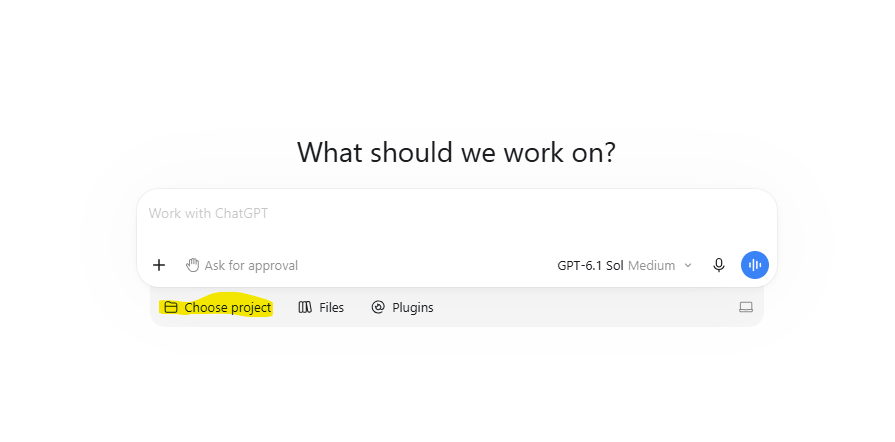
1. Under the chat box, click Choose project.
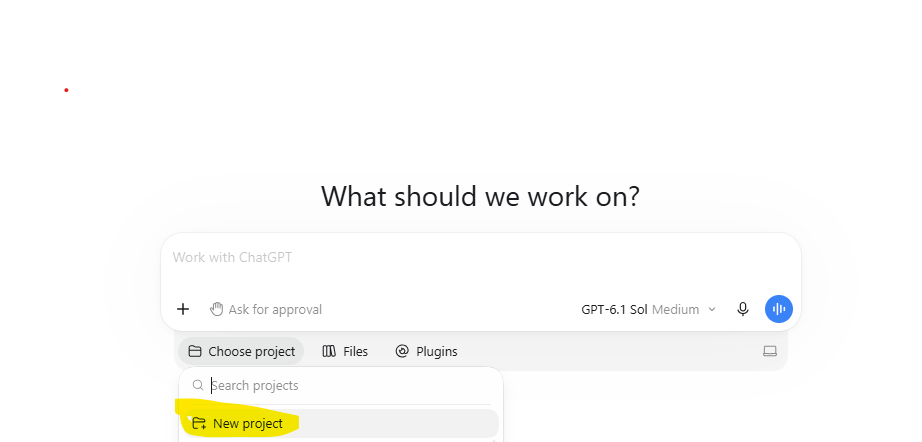
2. Click New project.
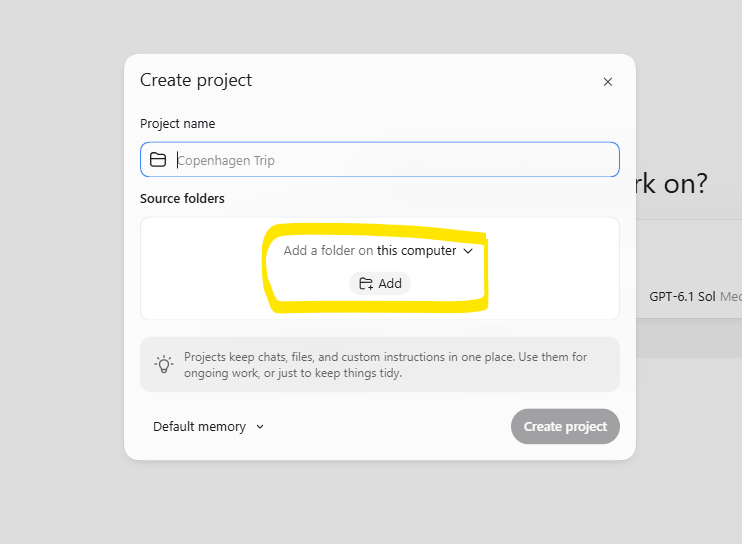
3. Name your project Business Brain, then under Source folders, click Add.
4. Browse to your Dropbox and select Sheridancotrell Team Folder. Select the folder itself, not one of the folders inside it.
5. Click Create project, then start your chat inside that project.
You only do this once. After that, choose your Business Brain project each time you start a new chat.
Already made your project? Use Edit project and Add folder instead.
Check it worked
Type this into your chat:
You should see folders including brand-context, context, offers, and projects. If ChatGPT can't see any files, or asks where your folder is, check which folder you attached to your project and try again.
The context window is the information available to ChatGPT while it works in a chat. Your messages, the files it reads, and tool results all add to it.
Keep each chat focused on one outcome. When you move to a different task, run wrap-up and start a fresh chat in the same project.
In the desktop app, /status can show context usage where supported.
Use the sidebar to get back to your projects and chats. Keep all Business Brain work inside the project connected to the folder.
Keep it manageable
- Rename chats by the result you're working toward.
- Pin chats you return to regularly.
- Search for an older chat when you need it.
- Archive finished chats once you've run wrap-up.
Work that reads files, uses tools, or produces a finished result uses your account's allowance. ChatGPT Work and Codex share usage limits.
Check your allowance
Use the usage information in your account or app. In supported desktop chats, /usage opens usage and billing settings and /status can show rate limits.
Check what's left and when it resets before a large task. The details depend on your plan, so follow what the app shows.
Use sessions well
Give each task a clear result, point to the relevant files, and review the output before asking for more. If you reach a limit, use that time to review drafts or gather source material, then continue when access returns.
Permissions control which files and tools ChatGPT can use, and when it needs your approval. Check the permissions control below the chat box.
What the options mean
- Ask for approval: works within the allowed workspace and asks you when it needs more access.
- Approve for me: eligible requests go through automatic review. This doesn't widen the allowed workspace.
- Full access: much broader access to files and commands. You don't need this.
Start with Ask for approval. Read the requested action and location before approving it. Some options may be unavailable depending on your app or workspace settings.
For a task that should stop at a draft, say so in your message.
Attaching the folder gives ChatGPT the Business Brain files. Outside accounts, such as Airtable or Google Drive, are connected separately with a plugin.
Add a connection
- Open Plugins in the app.
- Find the service you want and install its plugin.
- Sign in to that service when asked and review the access it requests.
- Start a new chat if the connection isn't available in the current one.
- Test it with a read-only request before asking it to change anything.
If you can't find the tool you need, ask Cathy.
Your Business Brain OS is built from a specific set of folders, each with a clear job. This module walks through each one in turn.
- Overview — the full layout at a glance
- Context Folder — who you are and how Claude behaves
- Memory Folder — what Claude remembers between sessions
- Brand Context Folder — your voice, audience language, and visual brand
- Offers Folder — detail files for each of your offers
- Source Folder — raw material you bring in (transcripts, notes)
- The .claude Folder — skills, commands, and hooks
- CLAUDE.md — the instruction file Claude reads every session
Almost everything in the Business Brain OS is stored as a markdown file — plain text with a .md extension. This module covers what that means in practice and how to work with those files confidently.
- What is Markdown? — why it's used and what it looks like
- Opening and Editing Files — how to read and update your context files
- Getting Documents In — how to bring external documents into your system

What each folder in your system does and what lives inside it.
When you open the Business Brain OS folder, you'll see a collection of folders and files. Each one has a specific job. Together they're what lets Claude show up already knowing your business every time you open a session.
This module covers each one in turn. By the end you'll know exactly where everything lives and why.
You don't need to do anything with them yet. Just understand the layout before you start filling it in.

This is one of the most important files in the whole system. Every time you start a conversation with Claude, this is the first file it reads.
Think of it as the map, or a breadcrumb trail.
It tells Claude what's in your system and where everything lives.
From there, depending on what you've asked it to do, it follows the trail. Going to the next relevant file, reading the context it needs, and so on. This is how the Business Brain OS always knows where to look.
When you first install the system, CLAUDE.md is already set up with everything it needs.
As you fill in your context files and work with Claude over time, it will update this file automatically behind the scenes. You don't need to open it or manage it directly.
Monthly Check-in
The one thing worth doing is a monthly check-in.
Once a month or so, ask Claude to read your CLAUDE.md and check if anything needs updating, trimming, or moving elsewhere.
The file should be an overview of your system, not a document that contains everything. If it starts getting too long, Claude can tidy it up.
Just ask it to take a look and go back and forth with it until everything looks right.

The dot at the start of the name means this is a hidden folder on your computer. If you can't see it, you'll need to update your Windows settings to show hidden files.
You won't ever really need to go into this folder, but here's what's in it:
Skills
This is your library of 50+ pre-built workflows.
Each one handles a specific task, for example writing a Facebook post, running a keyword search, or drafting an email sequence.
When you run a skill, Claude goes to this folder to read the instructions, loads your context files, and does the work.
You can go in depth into the Skills in your Business Brain in this module. There you'll find a cheatsheet with all your skills, plus training on how to create your own.
Commands
These are the shortcuts that tell Claude to run a skill.
You type a forward slash followed by the skill name (e.g. /wrap-up) and it pulls it up. Nothing you need to touch in here directly, just good to know where they live.
Hooks
Behind-the-scenes automation that Claude uses. Nothing you need to do with these.

The brand context folder is where we build out a picture of your business and your brand. When you first install the system, these are mostly empty templates. They get filled in as we work through the setup process together.
Here's what's inside:
About Me: where you save existing material about yourself or your business. There's a readme with ideas for what to include, and you'll be guided through finding what you need.
Audience Language: this is where you collect language from your audience, pulled from call transcripts, old content, and similar material. When the system writes for you, it draws on this folder to make sure it sounds like it's speaking to the right people.
Brand Stories: your origin story, personal stories, business stories. You'll be guided through building this out, and there are prompts to help if you're starting from scratch.
Testimonials: client testimonials go here.
Writing Samples: this one is important. You need to find samples of your own writing, ideally from before you were using AI. If you don't have anything ready, you'll be guided through how to capture your voice using audio notes. For AI to write in a way that genuinely sounds like you, it needs real examples of how you write.
The templates in this folder are filled in by Claude as we work through the brand context setup together. For now, this is just an overview. You don't need to do anything yet.
In this module, I take you through the steps of adding in your context and configuring the Business Brain OS to your business.

When you first install the system, the context folder contains placeholder files. As you work through the setup, these get filled in. Here's what each one does:
ceo-north-star.md: your big picture: what you're building towards, your goals, your priorities. Once it's filled out, Claude checks in with it to make sure decisions stay aligned with what you said you're working towards. You can update it any time.
learnings.md: where Claude saves feedback you give about how the skills are working. You never need to read it. It's for Claude: it reads this when it's working to make sure it keeps improving.
parked.md: ideas, decisions, and projects you're not ready to act on yet. Instead of losing them or going down a rabbit hole, you ask Claude to park them here. They sit in the background until you're ready to pick them up.
revenue-tracker.md: if you want Claude to help you track income, this is where that lives. Keep it updated and Claude can reference it in any revenue-related conversation.
rhythm.md: your standing daily or weekly tasks. If there are things you want to do every day or every week, they go here and Claude pulls them in when relevant.
SOUL.md: Claude's personality and behaviour rules. This comes pre-configured, but as you work with the system, Claude checks in to make sure it's behaving the way you want. If something's off, you can ask it to update this file.
tomorrow.md: your to-do list. As long as you run wrap-up at the end of every session, Claude keeps this updated automatically: capturing what's outstanding, what's in progress, and any breadcrumbs it needs to pick up where you left off. One of the most useful files in the system.
USER.md: about you, your business, and your brand. Filled out during setup, and updated any time things change.
weekly-focus.md: optional. If you want Claude to help you stay focused on 2–3 priorities each week, this is where that's set. Claude can look at your tomorrow.md, open threads, and memory to help you identify and stick to your weekly focus.

The memory folder is a core part of the system. When you first install it, it's empty. Over time, it becomes the record of everything you've worked on.
There are two parts to it:
MEMORY.md: the index file. Claude reads and writes to this to keep an overview of what's in the memory. You never need to open it.
sessions/: a subfolder with one file per day. Every conversation you have gets saved here. If you have five conversations in a day, they'll be saved as session one, session two, and so on.
You don't need to read any of these files. They're for Claude. At the start of a new session, when you say something like "where did we get to on X project?", Claude goes into this folder, reads through the sessions, checks your tomorrow.md, and pulls out anything relevant.
The other thing it's useful for is if something gets lost. For example, if your tomorrow.md ever gets wiped or goes wrong, you can ask Claude to go back through the memory sessions and pull out anything that was still outstanding. It can rebuild your to-do list from the session notes.
The memory system grows over time. The more you use it, the more context Claude has about you and your business. This is how the system gets smarter the longer you use it.
An important habit that makes all of this work is to run /wrap-up at the end of every session. That's what saves everything into the memory in the first place. See the lesson on the /wrap-up skill.

This is where your offers live. Over time, the goal is to have all your offers in here as fully written-out sales pages, so the system has all the context and detail it needs when writing for you.
There are a few ways to fill it out. If you have existing sales pages, we can create copies of them here. If you have ideas that aren't fully developed yet, there's an offer template to help you flesh them out, so you have something for the system to work from even before you have a finished sales page.
You can also use it to test new ideas and get them out there before you need a full sales page.
We go through this in more detail when we're building out your system together.

This is where you upload material about your business: documents, presentations, PDFs, Google Docs, anything you want to bring into the system. What goes in here will depend on what you've got and what you want Claude to be able to draw on.
When filling this folder out, Word documents and Google Docs are best converted into markdown files first.
Click here for the module on what markdown is and how to do it.
We do this because markdown files are easier for AI to read, more efficient, and take up less space.
The source folder is one of the most powerful parts of the system. You can give Claude everything you have and ask it to go through it and pull out what's useful: refining your offers, creating programme curriculums, writing sales pages, generating new ideas. Think of it as giving your Business Brain the full picture of your business to work from.

Markdown is a plain text file — you can tell because it ends in .md.
Most of the files inside your Business Brain OS are markdown files.
They're lightweight, easy for Claude to read, and best practice for working with an AI system.
Here's what the formatting looks like in practice:
- A
#at the start of a line = Heading 1 ##= Heading 2- Text wrapped in
*asterisks*= italic
Claude reads markdown natively.
And it goes both ways — if you paste the content into a Google Doc and choose "Paste from Markdown", it formats correctly as headings, italics, and so on.
Google Docs and markdown understand each other.
As you build out your Business Brain OS, get into the habit of keeping documents in markdown format wherever you can. It keeps everything lightweight and easy for Claude to work with.

There are a couple of ways to open and edit your markdown files.
You can open them directly from your folder, they'll open in Notepad, and you can edit the text there. But it's not recommended. Notepad just shows you the raw code, not the formatted version.
The best way to view and edit your markdown files is through Claude Code itself.
Once you've started a chat, go to the file panel on the right. This shows you a mirror of your Business Brain OS folder, the same files and folders you'd see in your file explorer.
Find the .md file you want, click it, and it opens in the panel on the right with the formatting applied — headings, bullets, all of it. Much easier to read.
You can also ask Claude to open a specific file for you: "Can you show me my north star file?" Claude will give you a clickable link, and when you click it, the file opens in the right-hand panel with full formatting.
Either way, reading and editing from inside Claude Code is the right habit to build.
You can see what's in the file, ask Claude to make changes, and watch the edits happen, all in one place.
You can bring existing documents into your system as markdown files, or create new ones from scratch. Here's how to do both.
Converting a Google Doc
Open the Google Doc, go to File → Download → Markdown (.md). It saves to your Downloads folder. Then move it into the right folder in your Business Brain OS — source/ for reference material, offers/ for offer docs, brand-context/ for anything about your brand or audience.
Converting a Word document
Drop the Word file into the relevant folder, then ask Claude: "I've added a Word document at [path] — can you convert it to a markdown file?" Claude creates the .md version automatically. Once it's done, you can keep the original Word file or delete it — the markdown version is what Claude works from.
Creating a new file
You don't need to create markdown files manually very often — Claude creates them for you when it saves memory, context, or output files. But if you need one, just ask: "Create a new file at [path/filename.md] with the following content..." and Claude will write it.
The .md extension is what tells Claude (and your computer) it's a markdown file. That's the only thing you need to get right.